

Smart Packaging
A pack is printed once and then lives for years, in shops, in several countries, in front of people who speak different languages. Smart Packaging is the Unitag application for that situation: it gives each product its own QR code, and decides at scan time what that code should show.
What makes that possible is a model. A product belongs to a range, a range belongs to a brand, and the brand belongs to an organisation. Ownership and access follow that chain, and so does everything you set once and want applied to many products.
The control panel
The application opens on its dashboard. The left rail is the whole product in one column:
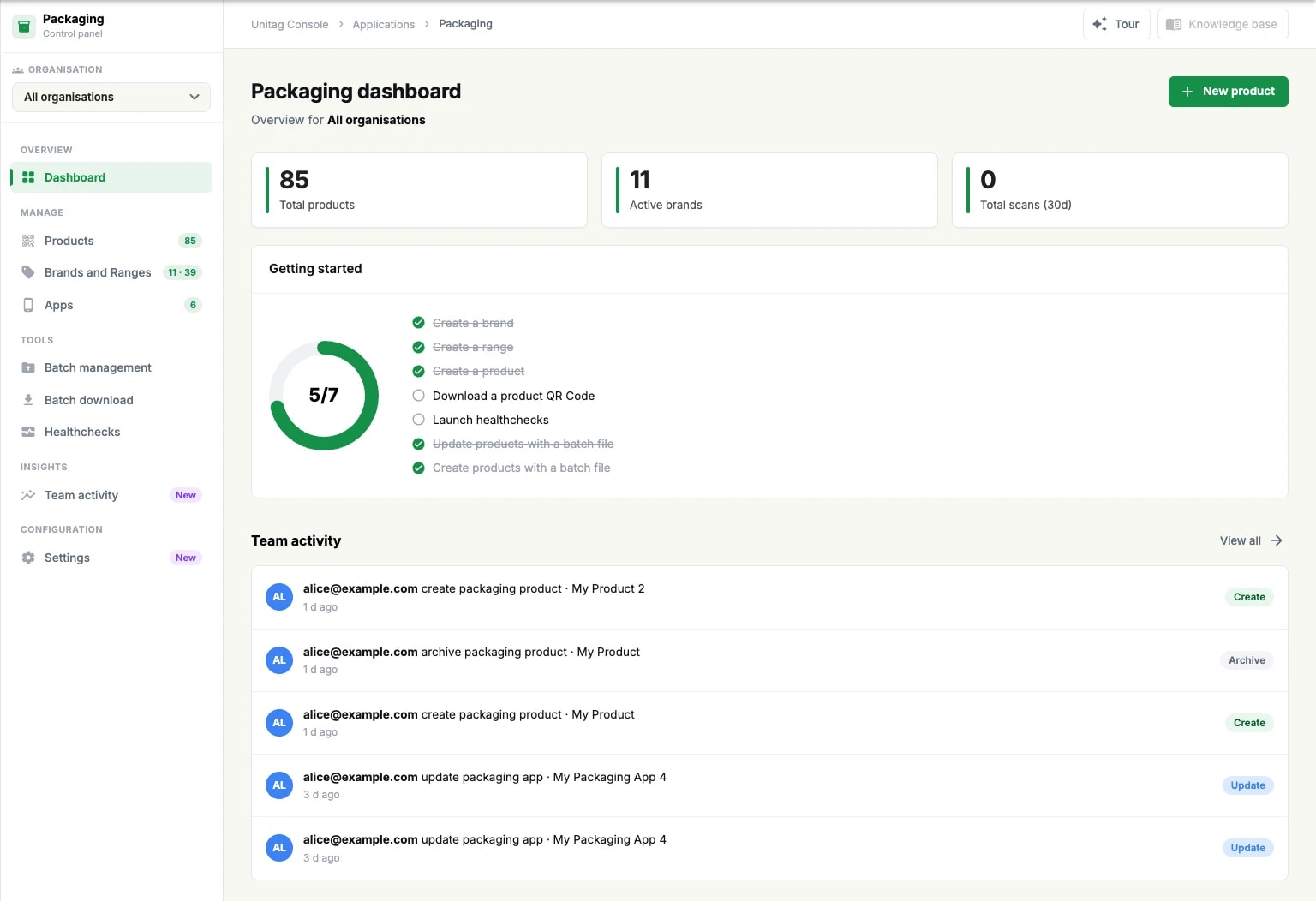
Dashboard: the counters, the getting-started checklist and recent team activity.
Products, Brands and Ranges and Apps: the objects you create and edit, each with its count beside it.
Batch management, Batch download and Healthchecks: the bulk and monitoring tools.
Team activity: who did what in Packaging.
Settings: the defaults new products are created with.
The organisation selector at the top of the rail scopes everything below it, which matters as soon as an account holds more than one brand owner. The Tour button in the header replays the guided tour of the interface.
Getting started
The dashboard carries a Getting started checklist, and its order is the order the model requires:
create a brand;
create a range under it;
create a product under that range;
download the product's QR Code;
launch healthchecks;
create and update products with a batch file.
You cannot create a product without a range, or a range without a brand, so the first three are not a suggestion. The donut beside the list tracks how far along the account is.