

Unitag Scheduler: automate QR codes
A printed QR code cannot be reprinted at midnight. Scheduler is what lets it change anyway: you plan the change in advance, and the platform applies it at the date and time you set.
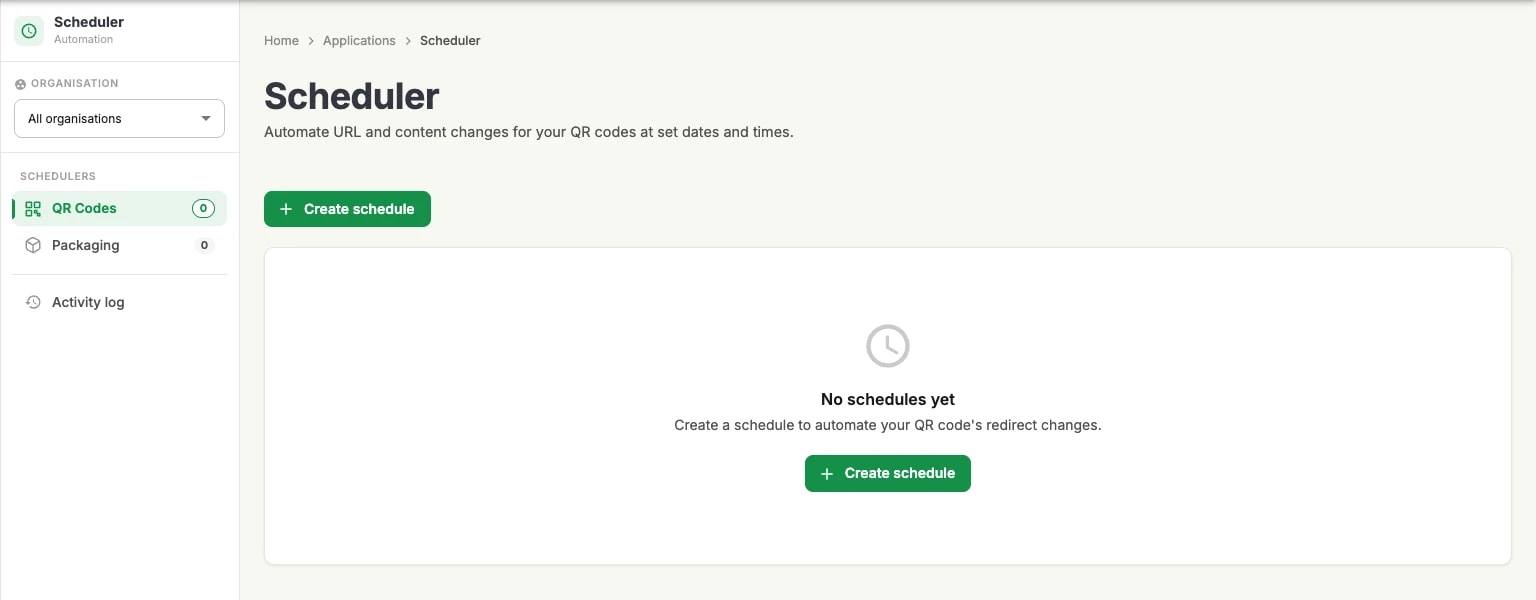
The console states it in one line — automate URL and content changes for your QR codes at set dates and times. What that removes is the person who would otherwise have to be at a keyboard at the right moment.
What you can automate
A schedule attaches to one QR code and holds up to three changes. Each change carries a date and time, and one of two kinds of instruction:
Swap the destination URL: the code stays a URL code and starts pointing somewhere else.
Switch the content type entirely: the code stops being a URL and becomes an event, a document, a plain text message, a Wi-Fi network — any of the content types the generator offers.
The second is the part people underestimate. A QR code is not locked to the kind of content it was created with, so a code printed on a poster can be a URL during a campaign and an event afterwards, with the switch planned weeks ahead.
What it works with
Scheduler works with dynamic QR codes and with the Packaging solution. Both resolve through Unitag at scan time, which is what makes a later change possible at all.
A static QR code encodes its destination in the pattern itself, so nothing on our side can change where it leads. If a code needs to be scheduled, it needs to be dynamic — see QR code types.
The app's left rail reflects this: one scheduler for QR Codes and one for Packaging, each with its own count, plus the shared activity log.
What it is good for
The pattern is always the same — one code, several lives:
A promotion with an end date. The code on the flyer points at the offer while it runs, and at the general catalogue the morning after it ends. Nobody has to remember.
A restaurant menu that follows the service. One code on the table: breakfast until 11:00, lunch until 15:00, dinner in the evening. Three changes a day, planned once.
An event that becomes a replay. Before the date the code is an Event, so scanning it adds the session to a calendar; after it, the same code becomes a URL pointing at the recording.
A product page that opens at launch. Packs are printed and shipped weeks early; the code shows a holding page until the launch date, then the real product page.
A seasonal pack. The same printed pack points at the summer recipe set in June and at the winter one in November.
Where to find it
Scheduler is in the Tools group of console.unitag.io, or at the Scheduler entry in the console's left navigation.