


Manage Digital Links
The application's main screen is the list of every Digital Link code on the account, with the filters to find one and the actions to work on it.
Finding a code
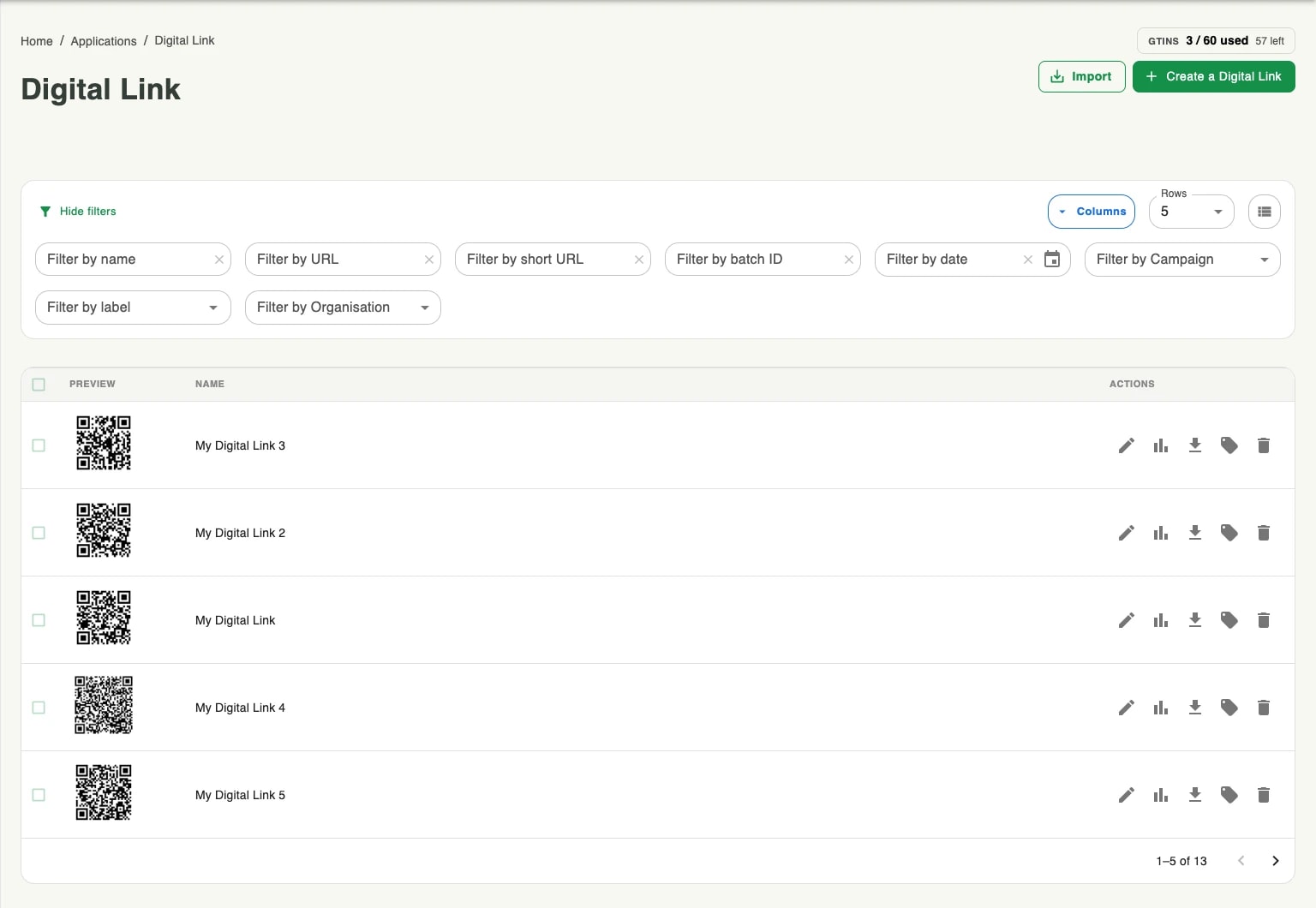
The filter row narrows the list by name, by destination URL, by short URL, by batch ID, by creation date, and by campaign, label or organisation. Hide filters collapses the row once you are done with it.
Columns chooses which columns the table shows, Rows sets how many codes appear per page, and the button beside them switches between a compact and a comfortable row height.
Each row shows a preview of the code, its name, and the action buttons.
The row actions
Edit: opens the code's panel — destination, link types, campaigns and labels, and its scan statistics.
View in Analytics: opens the same code in Unitag Analytics, where the scan data can be read across a period and against other codes.
Download: downloads the QR code image for artwork.
Manage labels: attaches labels to the code without opening the full panel.
Delete: removes the code. A deleted code stops resolving, so anything already printed with it stops working.
The code panel
Edit opens a panel with the QR code and its short URL on the right and five tabs on the left:
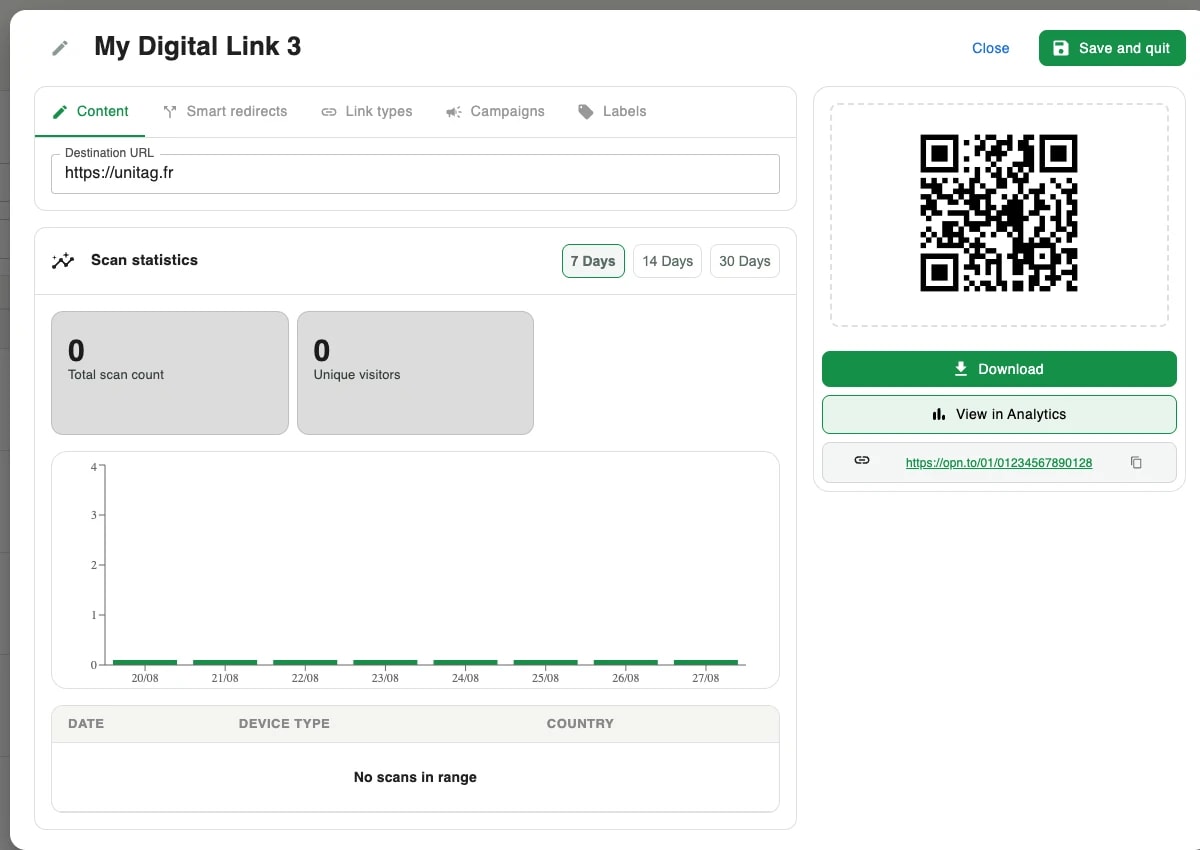
Content: the destination URL, and the scan statistics — total scans and unique visitors over 7, 14 or 30 days, with the daily chart and a table of scans by date, device type and country.
Smart redirects: conditional destinations, the same mechanism documented for QR codes.
Link types: several destinations from one code, described below.
Campaigns and Labels: how the code is organised alongside the rest of the account.
The short URL under the QR code is the Digital Link URI itself, in the form opn.to/01/ followed by the GTIN. Save and quit stores the changes; Close discards them.
Link types
Link types are the reason a Digital Link code can replace several codes. A scan can ask for a particular kind of information, and the code answers with the destination you set for that kind — the product page for one, the allergen information for another, the instruction manual for a third.
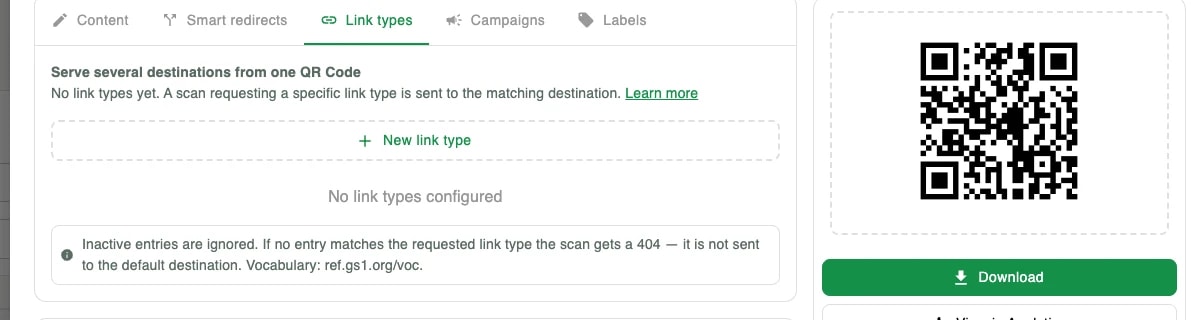
New link type adds an entry: the link type, and the destination it should resolve to. Entries can be left inactive, and an inactive entry is ignored.
The vocabulary of link types is GS1's, not ours: the full list lives at ref.gs1.org/voc.
Creating codes in bulk
Import, beside Create a Digital Link, hands over to Atlas. Atlas is the Unitag tool for generating and updating many QR codes at once from a spreadsheet, which is how a catalogue's worth of GTINs becomes a batch of Digital Link codes rather than an afternoon of forms.