


Smart Redirects
A Smart Redirect sends the same QR code to different destinations depending on who scans it. One printed code can then serve several audiences at once — the right language, the right app store, the right country's shop — without anyone having to choose.
Three kinds of condition are available:
Language: the QR code reads the language the scanning device is set to and sends the reader to the matching destination. A language you have not covered falls through to the QR code's default destination.
Device type: the QR code recognises the kind of device that scanned it and redirects accordingly — the App Store for an iPhone, Google Play for an Android, a full site for a desktop browser.
Location (country): the QR code reads the country the scan comes from and sends the reader to the destination you set for it — a local storefront, a regional price list, the right legal notice.
To add a Smart Redirect to a QR code:
On the QR code's page, open the tab.
Read the first step of the wizard, then click .
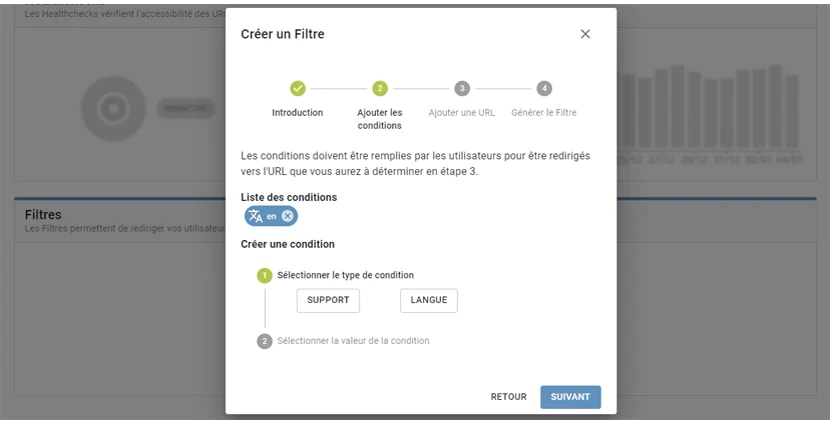
Pick a condition: language, device type, or location.
Choose a value for it in the menu that appears.
Click so the condition joins the list above, then when you are done. You can add as many conditions as you need, or remove them.
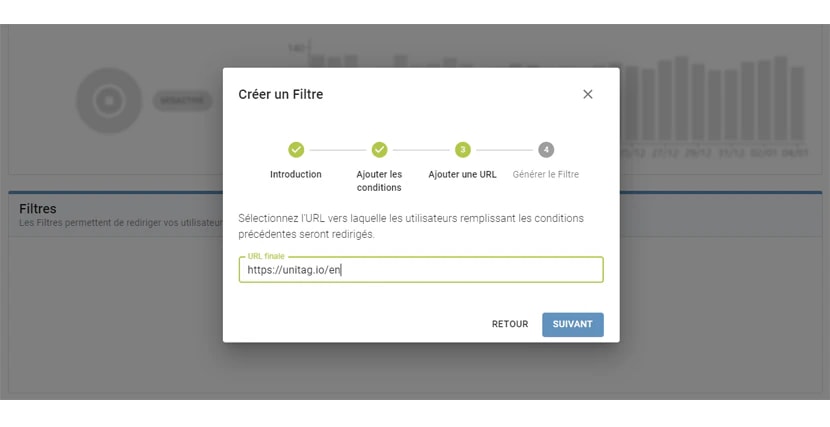
Type the destination for that condition and click Next. Readers who match it will be sent there.
Click : the Smart Redirect now appears in the list.
Repeat for as many redirects as you need.
To remove one, click Delete on its row.