

Download a QR code
With the new Unitag platform, you can easily download multiple QR codes in no time.
Download as PNG
To download a QR code as .png:
Go to the QR codes app.
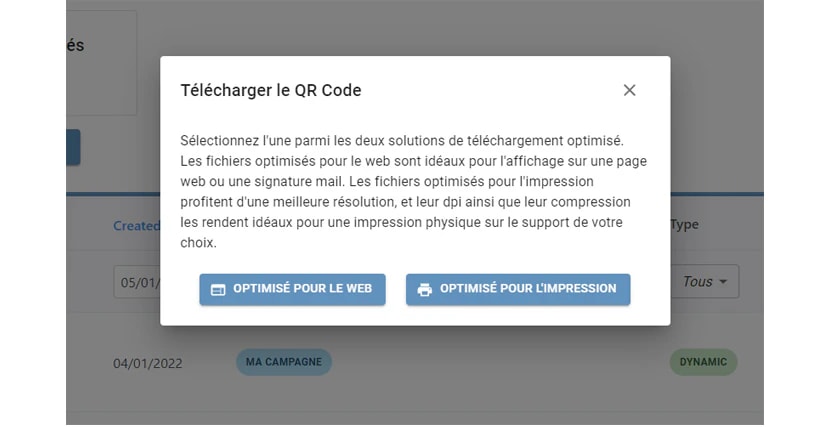
On the QR code row, click Download .
Select either Web Optimized or Print Optimized. These affect image resolution.
There is two more ways to download a QR code as .png:
Second option:
Go to the QR codes app.
Click the checkboxes of wanted QR codes.
Click on .
Click on Export as PNG.
Your QR code will be automatically downloaded.
Third option, from the QR code information page:
Simply click the Download button, on the left menu. The same download menu will show.
Download as custom format
To download one or multiple QR codes as a desired format:
Go to the QR codes app.
Click the checkboxes of wanted QR codes.
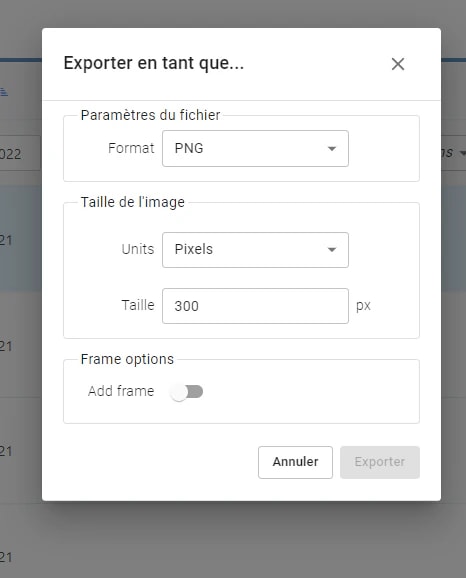
Click on then on Export as....
Give the QR codes a format and a size.
You can chose a Frame to put with the QR code.
Click .