


Campaigns
The Application gives the possibilities to have multiple QR codes under the same campaign, from this page it's possible to:
Create a Campaign
Edit a Campaign
Create a Sub Campaign
Delete a Campaign
Create a Campaign
It's possible to create a campaign by clicking on the green button other the display list.
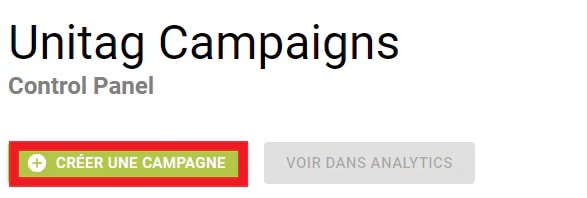
You can validate your creation by clicking on the validate action button.

You can cancel your creation by clicking on the cancel button.

Edit a Campaign
It's possible to edit by clicking on the editing action button.

Create a Sub Campaign
It's possible to create sub campaigns by clicking on the folder action button.

Once clicked on the folder button a new line like the creation one will be created under the campaign we want a sub campaign.

Delete a Campaign
It's possible to delete a campaign or a sub campaign by clicking on the delete action button.
